
Empower Live AI Coach acts as your real-time conversational assistant during video calls and meetings. In this guide, you’ll learn how to activate the coach, install the browser extension, select coaching templates, and use live AI assistance to summarize calls and capture action items.
Prerequisites
- An active Meet.us Business account.
- Live Coach feature activated on your account by your CSM (csm@ringover.com) or Support (support@ringover.com)
- Microphone and recording permissions enabled in your browser and active in Meet Us.
Install and use Empower Live AI Coach
1. Chat with your Live AI Coach during the call
Interact with your assistant to generate instant insights and draft follow-ups in real time.
Preset prompt options
Use these actions during or immediately following your call to capture key meeting outcomes.
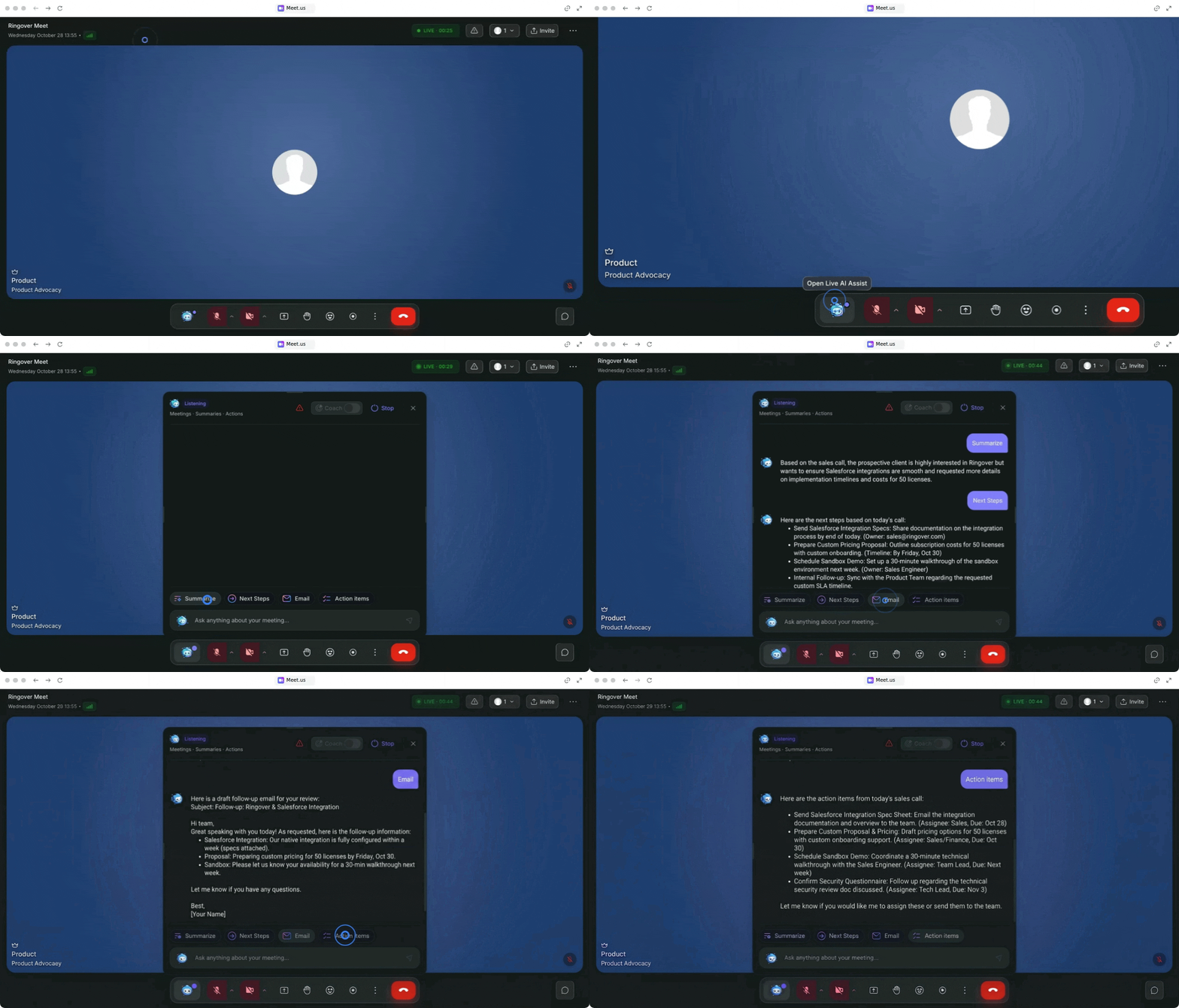
- Click on the agent live assistant icon in the side panel to chat with your coach.
- Choose from the available preset actions:
- Summarize: Get a concise recap of the discussion.
- Next steps: Identify agreed follow-ups and milestones.
- Write an email: Draft a recap email based on the call conversation.
- Action items: List deliverables and assignments mentioned during the call.
2. Install the Live AI Coach extension
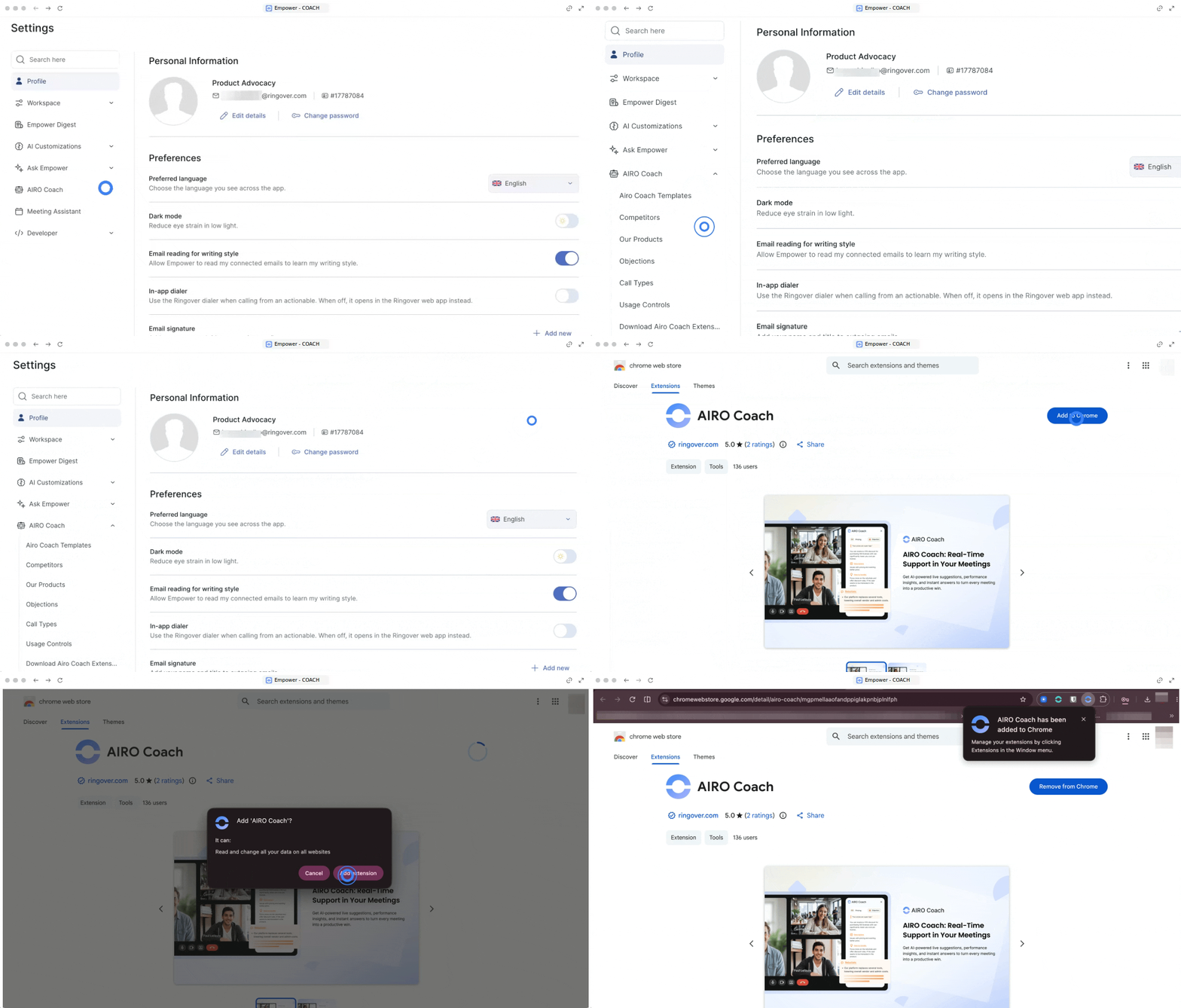
Download and install the dedicated AI Coach extension from the Chrome Web Store.
- Contact your CSM or Support to activate the Live Coach feature on your account.
- Log in to your Empower account.
- Click on AI Live Coach in the side menu.
- Click on Download AI Coach extension to open the Chrome Web Store.
- Click Add to Chrome.
- Click Add extension to confirm installation.
3. Open the extension and select a template
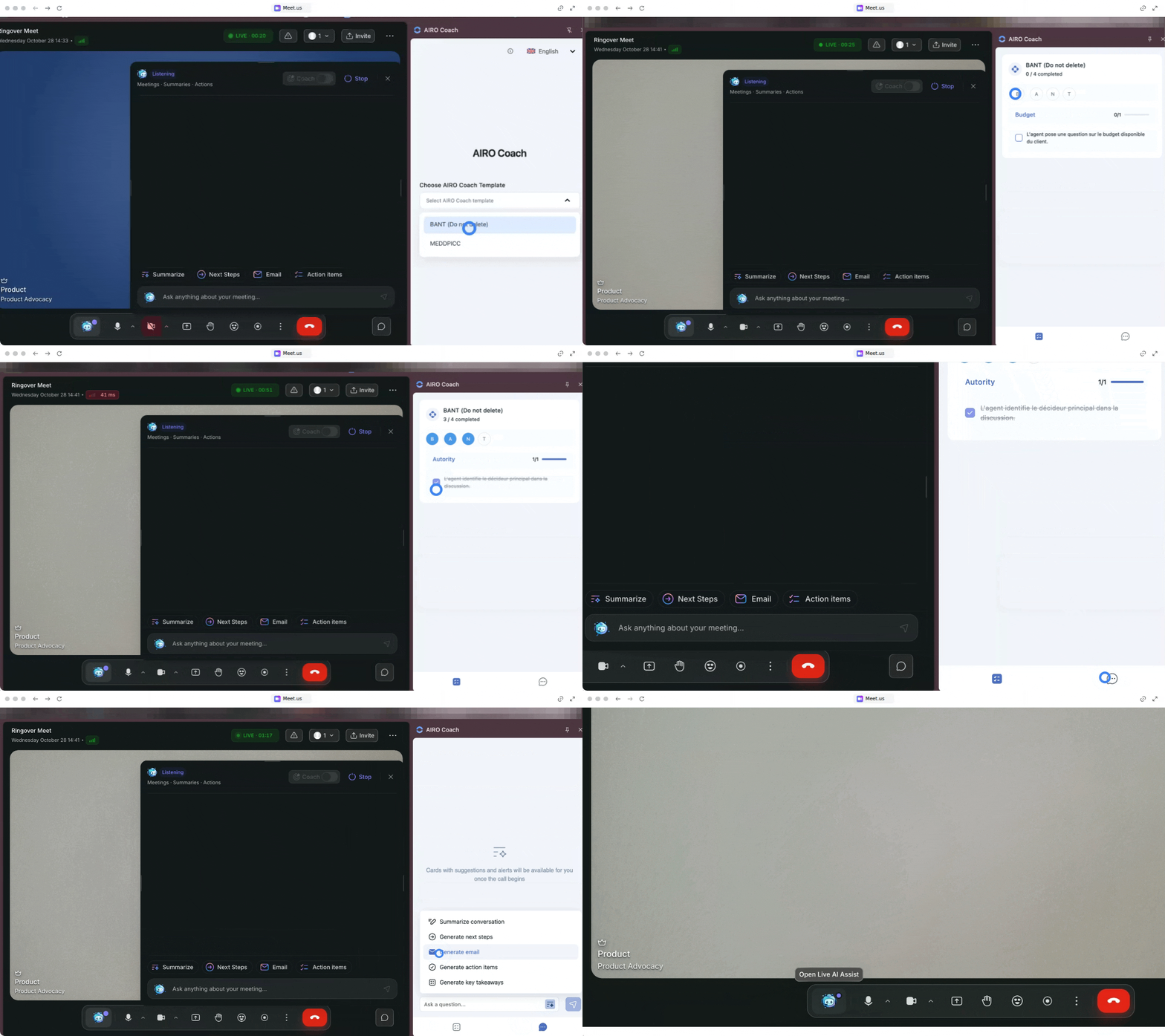
Access the side panel in your active meeting and validate your coaching methodology.
- Join your video call in Meet Us.
- Click on the Empower Coach extension icon in your browser toolbar to open the side panel.
- Select your desired coaching template.
- Check the template boxes to validate your coaching method.
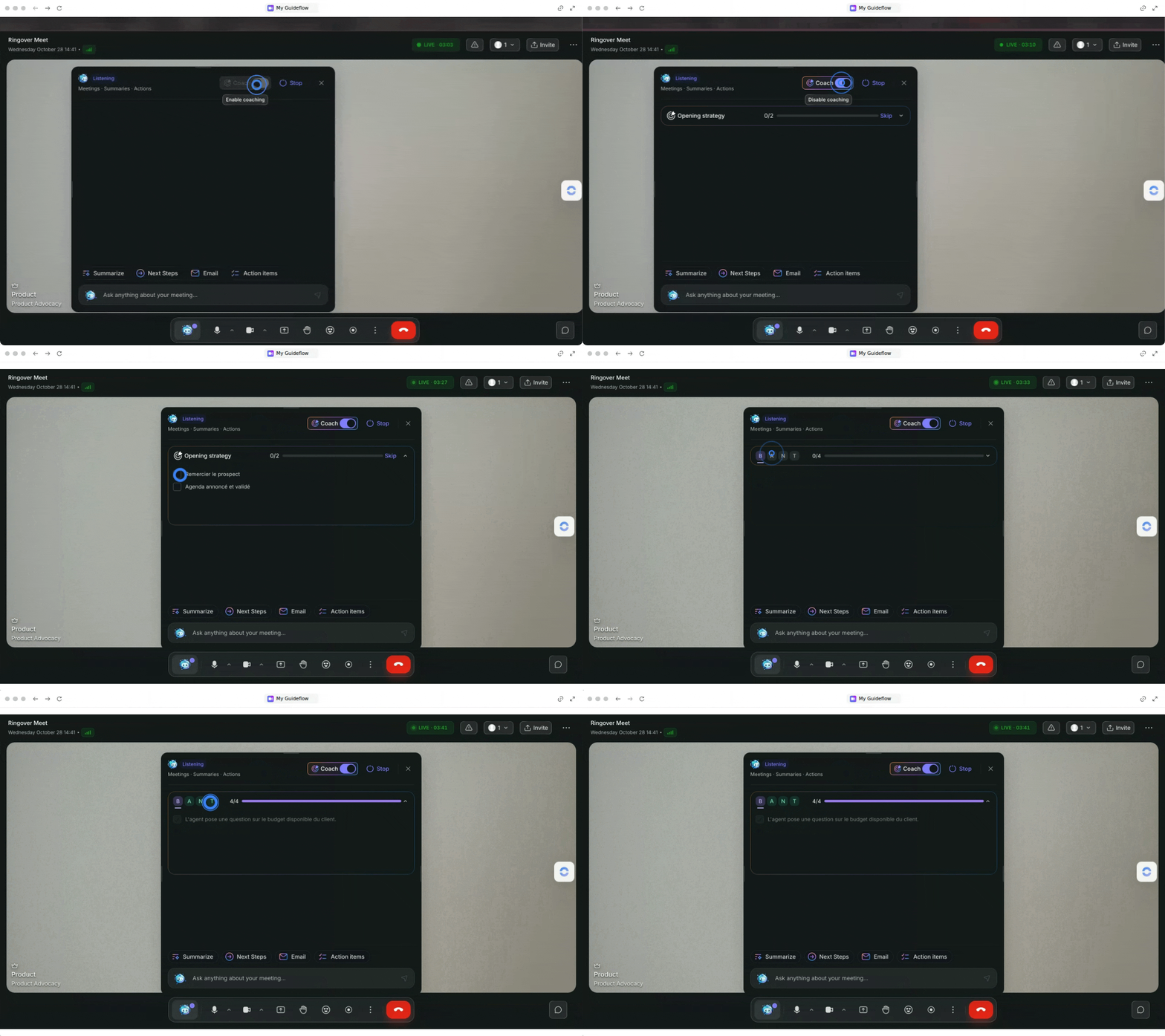
Then, activate the coach option in the live chat :
🎉 You now know how to install and use Empower Live AI Coach and can get real-time call guidance, instant summaries, and automated follow-up drafts!