
By integrating Ringover into Praiz, you’ll be able to:
- Automatically import Ringover recordings into Praiz
- Play back recordings directly in Praiz
Now, let's move on to the tool integration 📳
Prerequisites:
- You must have a Ringover Business or Advanced account to benefit from this integration 💳
- The integration must be performed by an administrative or technical account in Ringover 👨💼
- The integration needs to be installed by a Praiz administrator account
- Recordings must be enabled in Ringover
Step 1: Enable the “After-Call Work” webhook
Head to your Dashboard and go to the Webhook section, then enable the “Call Event” webhook by enabling the toggle:

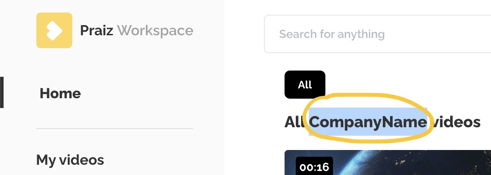
Enter the following URL: https://app.praiz.io/ringover/webhook/recordings/CompanyName into the “After-Call Work” webhook.
You need to replace the Company Name with the one found on your Praiz Homepage here:
Step 2: Generate an API key
Go to your Dashboard>Developer>API key and click on “Create an API key”. Under “Rights,” select the access rights 🔓 of your choice.
Follow these steps to generate an API key : Using our API
Step: Connect Ringover with Praiz
Go to http://app.praiz.io, the website for Praiz.
Click on the Company tab, then on Integrations, and then click “Install” next to Ringover and paste the API key that you generated previously
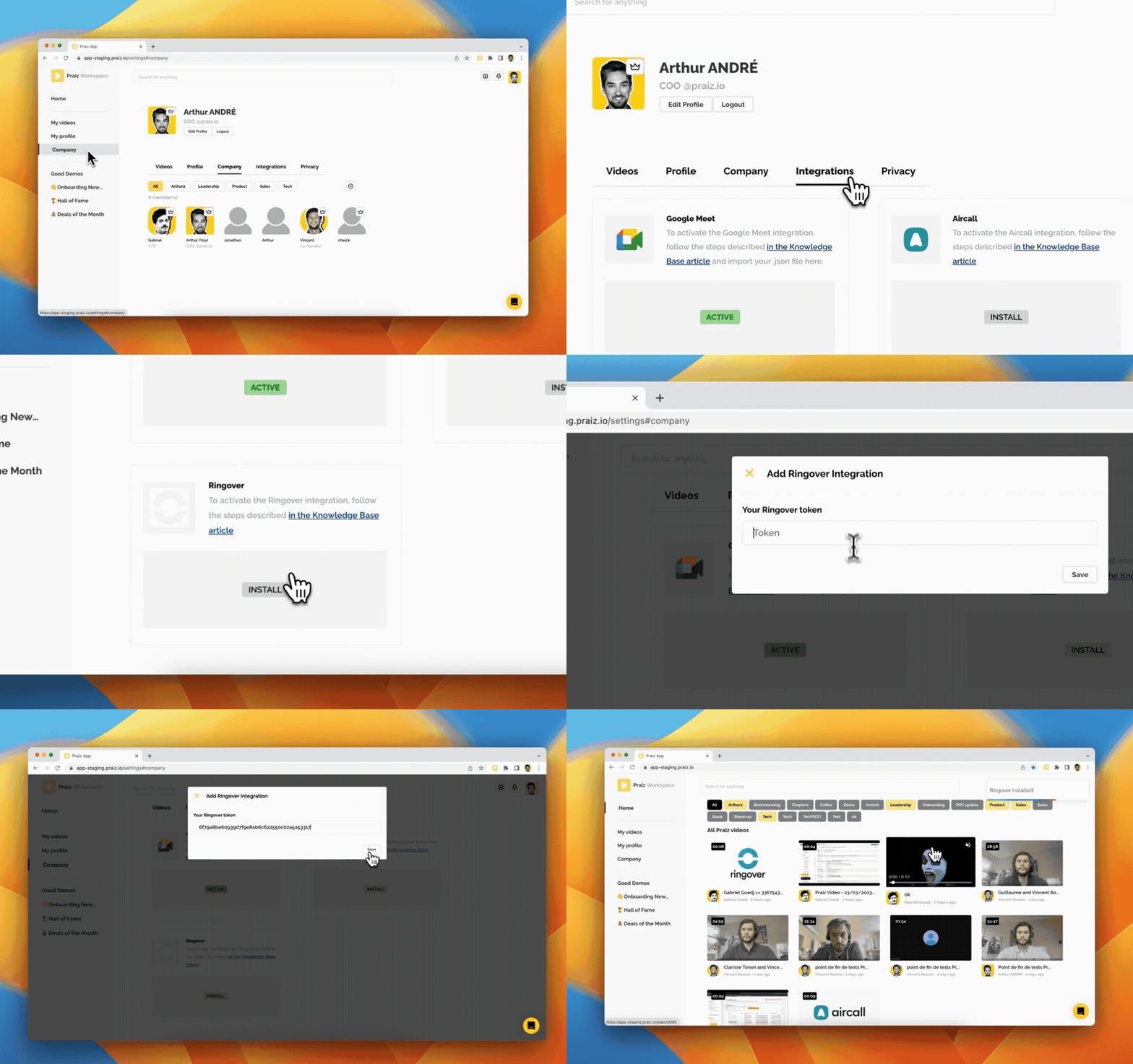
There you go, your integration is up and running. You can now find all your Ringover recordings in your Praiz interface! 🎉