
Ezekia is a modern, cloud-based CRM and ATS platform built for executive search and talent professionals. When combined with Ringover, it transforms your recruitment process into a connected, data-driven experience - where every call, message, and interaction automatically syncs with your contact records.
The integration with Ringover allows you to:
Log your call activities in Ezekia (with notes, tags, recordings and Ai powered summaries),
Log your SMS messages individually or as conversations
Log your WhatsApp conversations,
Synchronize the contacts from your Ezekia account,
Keep a record of WhatsApp conversations,
Configure Ezekia fields to show in the dialer,
Automatically create contacts when the number is unknown
Now, let's proceed with the tool integration 📳
Prerequisites:
You must have a Ringover Business or Advanced account to benefit from this integration 💳
The integration must be performed by an administrative or technical account in Ringover 👨💼
The integration needs to be installed by a Ezekia administrator account
Step 1: Activation
💻 Go to Dashboard>Store>Integration,
Search for and click on "Ezekia",
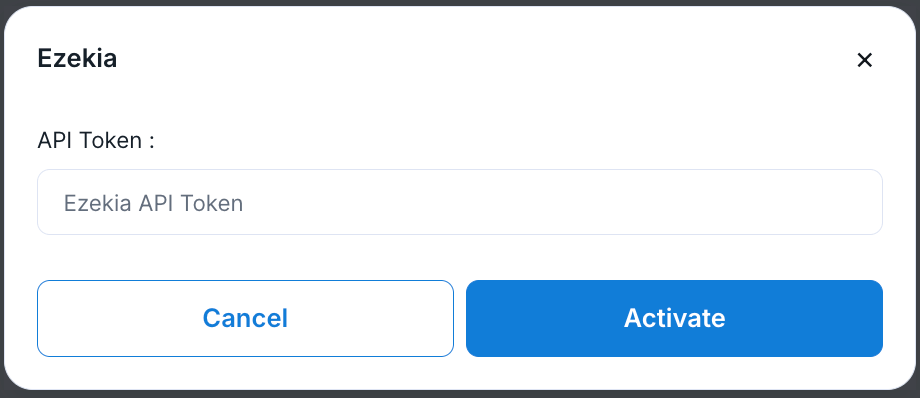
A pop-up window will appear, where you should paste the API token generated in your Ezekia account.
How to generate the API key in Ezekia
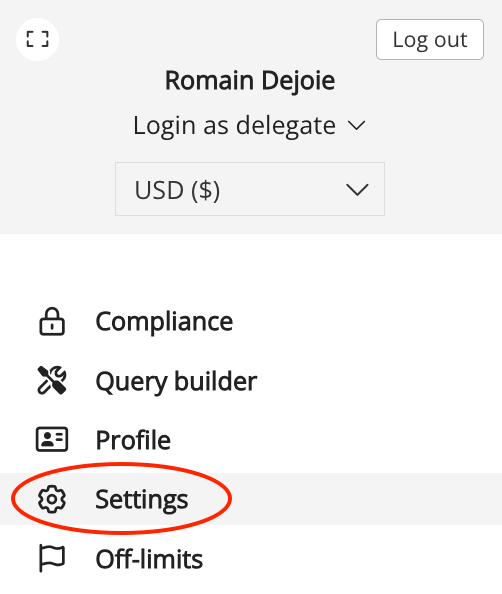
Go to your Ezekia account, open the menu and click on 'Settings'
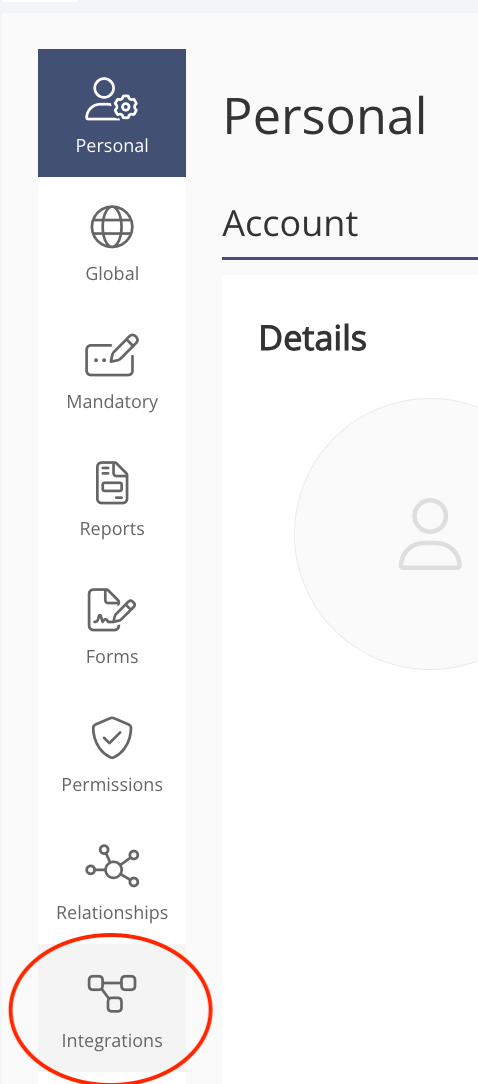
Navigate to 'Integrations'
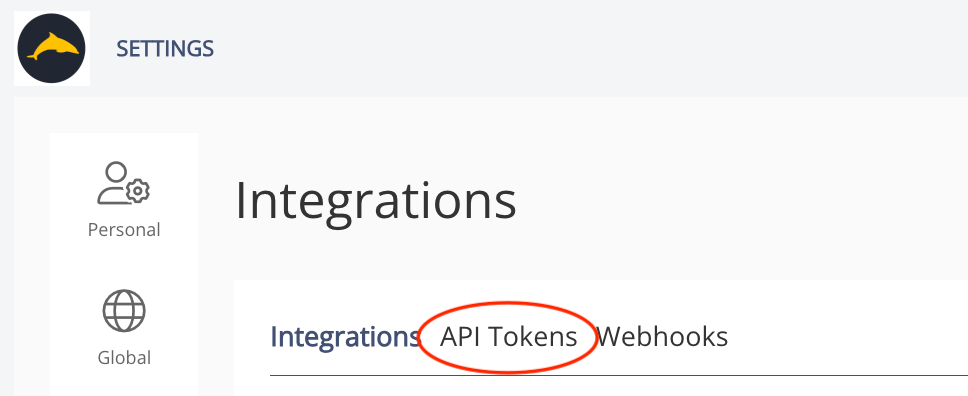
Click on 'API tokens'
-
Click 'Generate new token' and enter the following information
- Token name
- Expiration
- Associated admin user name (or create a dedicated API user for the integration)
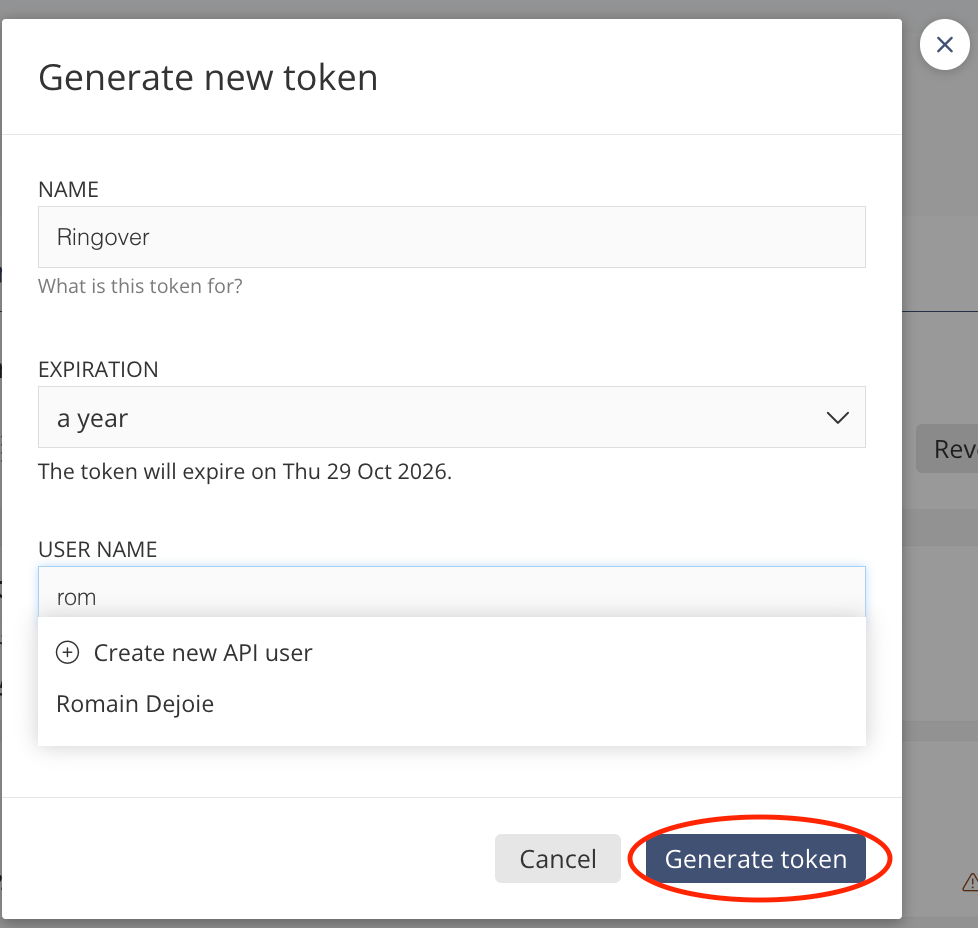
Click 'Generate token'
On the following screen you will be able to copy your token
Return to Ringover and paste the API key into the field in the Ringover popup window to activate the integration.
Now, click "Activate."
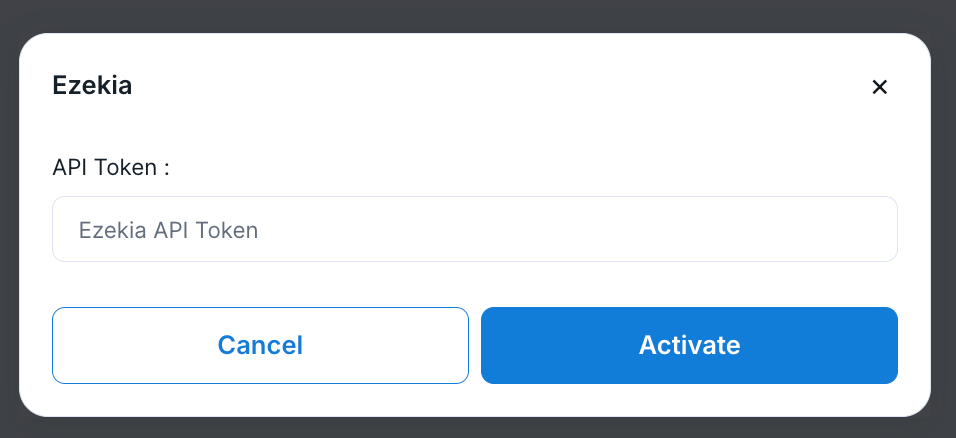
Step 2: Configure your Ezekia Integration
Customize the behavior of the integration based on your requirements through the settings. To do this, go back to Dashboard> Store> Integration and click on "Ezekia":
For more information on the configuration, check out our dedicated section "How to configure your tool?"
Select the settings you wish to apply to your integration. Here's what each of them does:
| Setting Name | Explanations |
| Call types | Allows you to filter the types of calls that will be recorded in Recruit CRM. By default, all call types are recorded. |
| Phone numbers | Allows you to filter the numbers for which you want to record calls. By default, all calls on all numbers are recorded. |
| SMS messaging numbers | Allows you to filter the numbers for which you want to record SMS. By default, all SMS on all numbers are recorded. |
| Link users with a Recruit CRM account | Allows administrators to choose which user to enable for the integration. |
| Log internal calls | Allows you to define whether or not to record internal Ringover calls in Recruit CRM. |
| Create a contact page for | Allows you to determine when you want to create a new object. Object creation is only triggered when no matching object is found for the phone number in your Recruit CRM database. |
| Link tags to call type |
Automatically updates the 'Type' field of the 'Call' activity created in Recruit CRM. Tags created in Ringover must be identical to the values in the 'Type' field in Recruit CRM. For example, if the 'Connected' tag is used in a Ringover call, the 'Type' field of the activity is automatically updated to 'Connected' at the end of the call. |
| Sync contacts (v4) |
Allows you to find your Recruit CRM contacts in your Ringover address book. |
| Type of object created | Allows you to determine which type of form will be created (Contact or Candidate). This is related to the "Create a Contact Page for" setting. |
| Contact creation for Whatsapp conversations | Records WhatsApp messages as Notes. |
| Field Mapping | More information here |
| Ringover Dialer | With the Ringover Chrome Extension, numbers in Recruit CRM are clickable. When you click on a phone number, you will be redirected to Ringover to make the call. |
Now, use the Ringover extension to make a call.
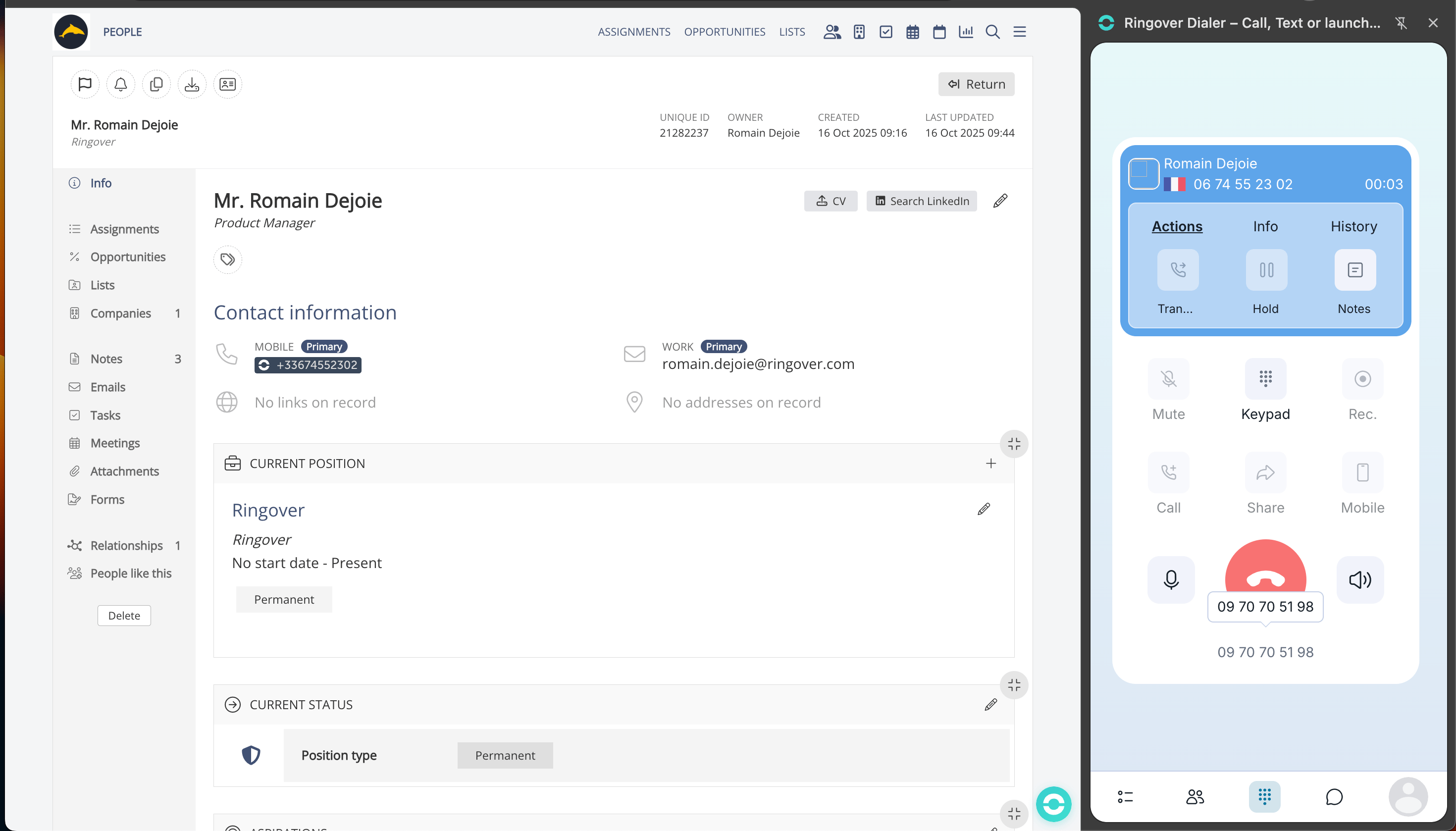
Add notes and tags while your call is in progress, if desired.
Once the call is completed, you will see general call information (duration, notes, call recording, and tags) on the contact notes in your CRM.
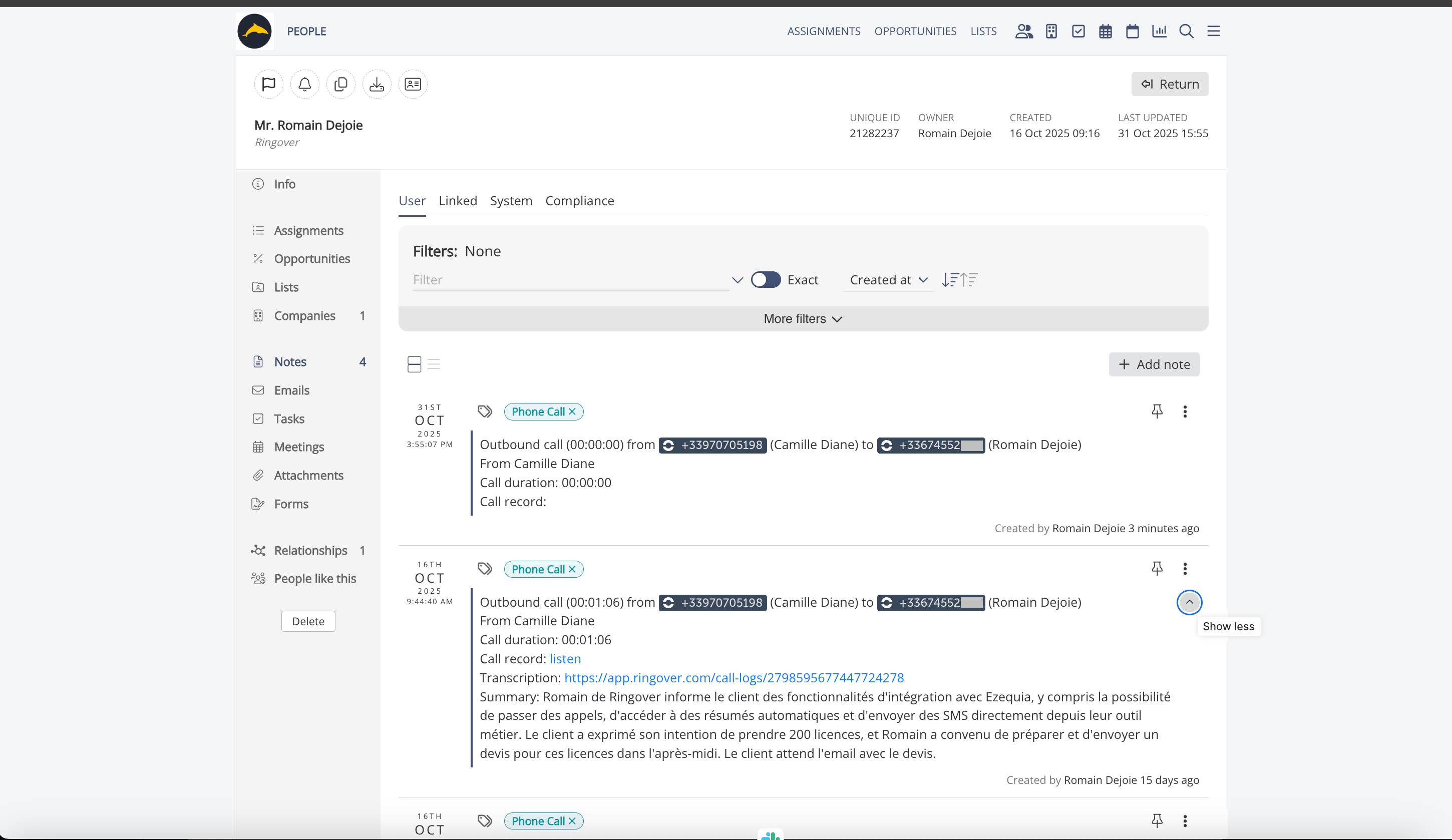
There you go, your integration is all sorted! 🎉