
This guide explains how to send WhatsApp template messages from HubSpot workflows using Ringover.
Prerequisites
Before configuring WhatsApp workflows, ensure you have:
- ✅ Installed and connected the Ringover ↔ HubSpot integration
- ✅ A Ringover WhatsApp-enabled number
- ✅ Created and approved WhatsApp templates
- ✅ Enabled HubSpot Workflows
- ✅ Activated the Omnichannel add-on in HubSpot
👉 Related articles:
🔑 Step 1: Generate your Ringover API key
To send WhatsApp messages via workflows, you need a Public API key.
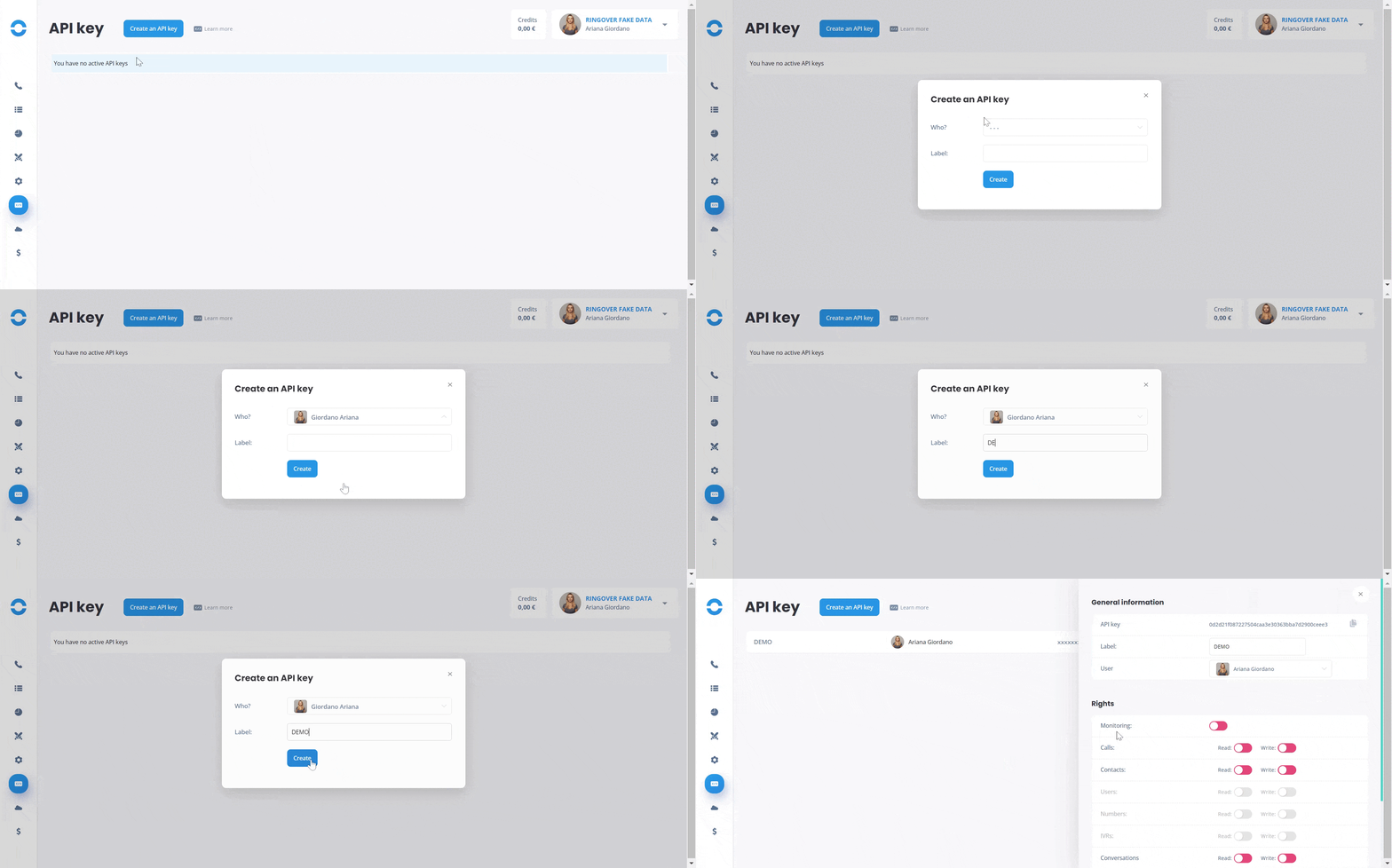
1. As a Ringover admin, go to Dashboard>Developer>API key and click on "Create an API key".
2. You do not need to activate any specific rights:
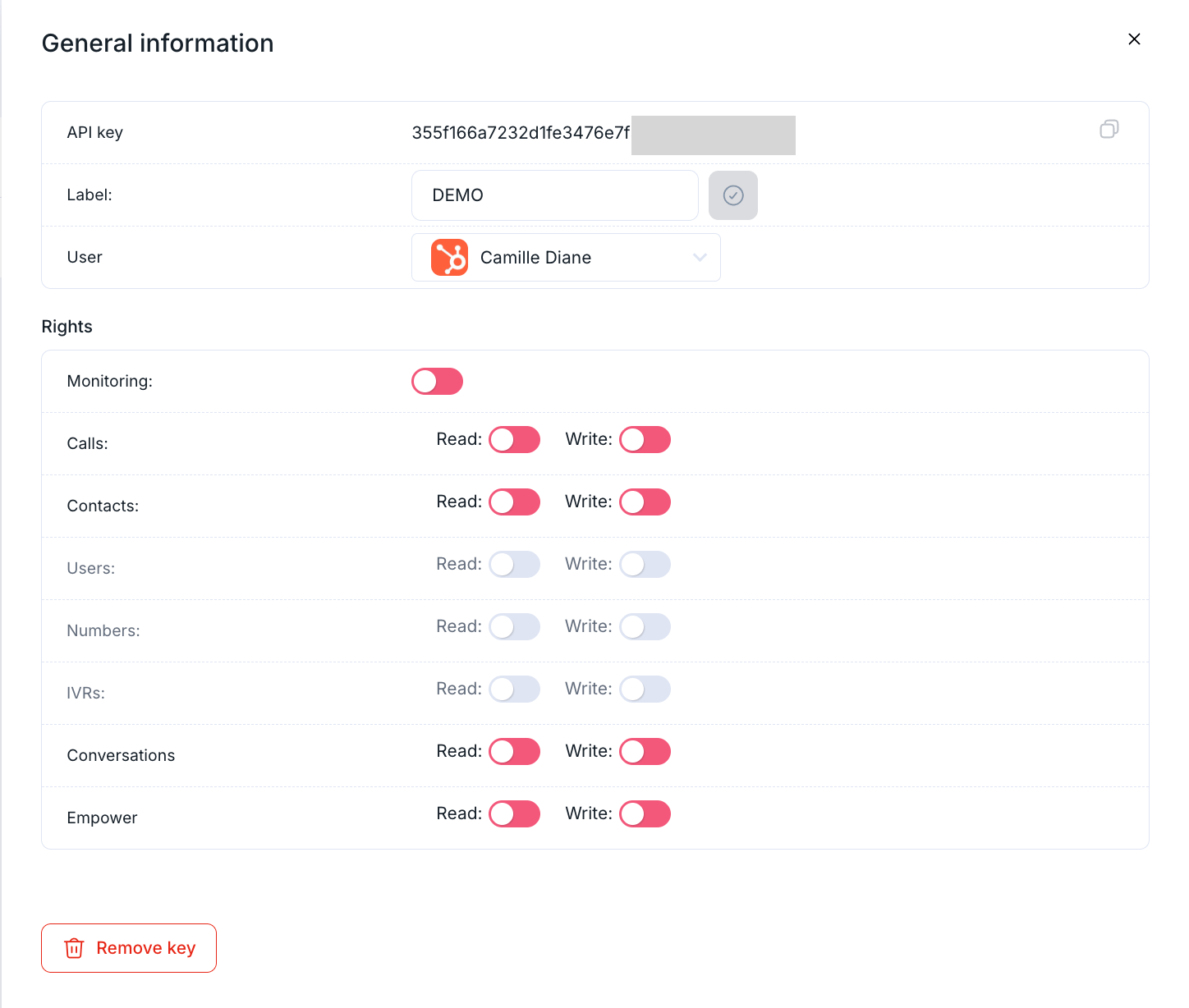
3. Copy the generated key 🗝️:
Step 2: Create a workflow in HubSpot
- Go to Automation → Workflows
- Click Create workflow
- Choose a Contact-based workflow
- Define your enrollment criteria
Step 3: Add the WhatsApp action
- Click + Add action
-
Scroll down in the Actions list, until you see the 'Ringover integrated app':
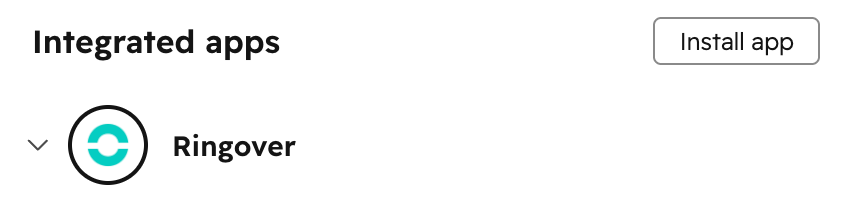
- Expand the list of Actions
-
Choose your Ringover SMS workflow depending on the region of your Ringover account:
- US: "Send a WhatsApp template message US" (recommended latest version)
- EU and rest of the world: "Send a WhatsApp template message" (recommended latest version)
- Select the action
Step 4: Configure the WhatsApp action
📱 Phone number property
- Select the contact’s phone number field
🔑 Ringover API Key
- Paste your Public API key generated earlier
🧾 Message template property
- Select your WhatsApp template
👉 If no template appears:
- Make sure it is approved
- Make sure it is synced with HubSpot
Step 5: Save and activate
- Click Save
- Review your workflow
- Click Turn on
⚠️ Important notes
- WhatsApp messages must use approved templates
- Templates cannot be edited directly in HubSpot
- Messages are subject to WhatsApp delivery rules (24h window, template categories, etc.)
Best practices
- Use clear and compliant templates
- Test templates before activating workflows
- Monitor delivery performance